Skip to content


Key Highlights:
- A WooCommerce store migration needs a verified backup, staging test, and final data check.
- Protect WooCommerce order history, customer data, refunds, and custom fields before moving.
- A two-pass data migration helps capture orders placed during the final switch.
- Test checkout, payment processing, and integrations before sending traffic to the new site.
- Keep a rollback plan until the new WooCommerce store is stable.
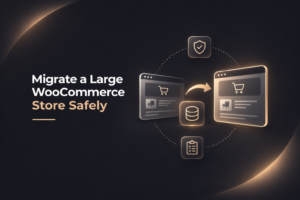
There’s more risk than just downtime when you migrate a large WooCommerce store. Missing orders, incomplete refunds, broken customer accounts, or lost payment data can create serious support issues well after launch.
Large stores often have years of WooCommerce store data, complex data relationships, custom fields, product variations, subscriptions, and connected systems. The migration process has to be done carefully, protecting the information while successfully moving your online business to a better hosting environment, a new commerce platform, or a new WordPress installation.
This guide will lay out the details of how to migrate WooCommerce orders and store data without leaving your order history behind.
1. Audit Your Existing WooCommerce Store
Start by documenting the existing WooCommerce store before you do anything else. Review the order volume, product data, customer accounts, refunds, coupons, custom fields, payment gateways, shipping tools, analytics, and integrations.
Your WooCommerce migration checklist has to identify where the data is located and what impacts it. WooCommerce order data may be stored differently, depending on whether or not the store uses legacy posts and post meta tables or WooCommerce High Performance Order Storage (also known as HPOS).
Here are the things you need to check for. It looks fairly extensive from the outside, but take it step by step:
- Total orders, customers, products, and product categories.
- Order notes, refunds, subscriptions, and downloadable products.
- Custom data created by plugins or custom development.
- Serialized data and complex data relationships.
- Existing URL structure, redirects, and search engine optimization settings.
- Hosting provider, server configuration, and payment processing requirements.
Documenting the current site will make it much easier to verify data integrity after the transfer takes place. It will also help uncover orphaned metadata or unnecessary store data that could slow or hinder the migration.
2. Back Up Your Store Before Migration
Create a complete backup of the entire site before transferring store data. Your backup should include WordPress files, the database, media files, themes, plugins, the WooCommerce configuration, and every order record.
A WooCommerce database backup has to include products, orders, refunds, customer accounts, customer data, product images, and any related metadata. Store backup files securely in a separate location so the backup remains available if the hosting environment fails.
Test WooCommerce backup and restore before migration, because a backup that has never been restored is not reliable.
Tools like Duplicator Pro will help create a complete backup and move an entire WooCommerce site. However, the best method is highly dependent on the size of the database, custom functionality, and how frequently the live store receives new orders.
3. Choose the Right Migration Method
There is no single migration tool that will do everything and anything for a WooCommerce website. A small store may move cleanly with an import/export plugin, but a large store with custom tables, high order volume, or complicated integrations may require a custom script, API-based data transfer, or manual migration. Some of the more common WooCommerce migration tools include:
- All in One WP Migration for moving WordPress installations and core site files.
- Duplicator Pro for full site packages and controlled moves.
- Cart2Cart for transferring store data, including products, customers, and orders.
- WebToffee tools for bulk export data and import data through a CSV file.
- Migrate Guru for some hosting moves and larger site transfers.
A CSV file may work well for standard product or customer records. You can export WooCommerce products, set export columns, review the export file, then import WooCommerce products using a matching import file. However, CSV-based tools may not preserve all custom data, order notes, serialized data, or complex data relationships.
Make sure the migration method supports WooCommerce HPOS. Also, check your WordPress dashboard for extensions that store data outside standard WooCommerce tables.
4. Test the Migration on a Staging Site
Never make the first transfer directly to the live environment. Create a WooCommerce staging site in the new hosting environment or on a private server.
Run a test WooCommerce migration, then compare the old site and the new site. This is a dry run that will help identify any missing records, plugin conflicts, broken URLs, and payment gateway problems before customers are impacted.
Throughout the process, make sure you validate:
- Order IDs, dates, statuses, totals, taxes, and order notes.
- Customer accounts, addresses, and purchase history.
- Refunds, coupons, subscriptions, and custom fields.
- Product data, variations, inventory, product categories, and media files.
- Images, checkout, payment processing, and shipping rules.
- Store configuration, scheduled tasks, APIs, and connected integrations.
Compare order counts and sample orders from different date ranges. Review recent orders, older historical orders, partially refunded orders, and edge cases with unusual customer data.
5. Preserve Order Data and Relationships
WooCommerce orders contain more than order numbers and totals. They may include customer addresses, products, taxes, shipping costs, coupons, payment details, refunds, notes, and custom metadata.
Make sure these details and their connections to customers, products, and order items carry over correctly. Pay close attention to custom fields added by payment gateways, subscription tools, fulfillment systems, and other plugins.
If your store uses High-Performance Order Storage (HPOS), confirm that order data is transferred to the correct tables and that the new setup supports your storage configuration. Simply copying traditional WordPress posts and metadata may not capture everything, and copying individual order tables without understanding their relationships can lead to missing or inconsistent data.
6. Plan the Final Migration to Prevent Missing Orders
The final WooCommerce live store migration requires good timing. Schedule it during a period of low traffic, but never assume a quiet period means zero new orders.
For a large WooCommerce store, a two-pass migration is often the best bet:
- Transfer the main database and files to the new hosting provider.
- Run a final synchronization to capture new orders, refunds, inventory changes, and customer updates made during the first pass.
Lower your DNS TTL to 300 seconds before the move, when possible. DNS changes can still take up to 48 hours to fully propagate, so plan for some overlap between the old site and the new WooCommerce store.
Place the old site in maintenance mode only if or when necessary. Editing your hosts file allows your team to test the new hosting environment before public DNS changes, which helps reduce migration downtime. If orders arrive during DNS propagation, reconcile them manually before closing the old store.
Preserve the existing URL structure whenever possible. If URLs have to change, implement 301 redirects, update canonical settings, and inform Google via Google Search Console after launch to protect search engine rankings.
Before switching over, make sure all recent orders, customer registrations, refunds, and other updates have been transferred. Avoid letting both stores take orders at the same time unless they’re set up to sync reliably. Otherwise, you could end up with duplicate orders or mismatched customer information.
7. Verify Order History After Migration
Once your shiny new site is up and running live, verify WooCommerce orders before assuming the migration is complete. Start with a count comparison between the old and new databases, then inspect a representative sample. Check for:
- Total order counts and customer counts.
- Historical orders, refunds, notes, and order statuses.
- Customer account history and saved addresses.
- Product counts, inventory, product images, and product categories.
- Payment data and payment gateway settings.
- Checkout, tax, shipping, emails, and payment processing.
- Search engine optimization settings, sitemap, redirects, and analytics.
Run live transaction tests with each payment method and confirm the orders appear in the WordPress Dashboard and that inventory is updating correctly, transactional emails are sending, and the payment gateway is recording the transactions properly.
Check that each key extension works with your new hosting environment and WooCommerce setup. Make sure payment references are still available and you can view past orders without accidentally triggering new charges. Test refunds and subscription workflows carefully using a test environment.
Keep in mind that moving order records doesn’t automatically transfer payment records or guarantee subscriptions will keep billing correctly. Check each integration separately, including webhooks, scheduled tasks, API credentials, and connections to external services.
8. Monitor Your Store After Launch
Post-migration monitoring and maintenance are critical, every bit as important as the data transfer itself. Watch new orders, refunds, inventory updates, scheduled tasks, plugin logs, and integration activity closely during the first days post-launch.
Poor web hosting can cause slow loading times, checkout errors, and avoidable lost sales. Monitor performance, server errors, and resource usage to make sure the new hosting plan is supporting your traffic and plans for growth.
Maintain the verified backup and rollback plan until the new WooCommerce store is stable. Review Google Search Console for coverage issues, confirm important pages are indexed, and watch for unexpected changes in organic traffic.
A tight, strategic site migration will improve scalability, accessibility, security, and customer support, but those benefits are only relevant if the store is stable after launch.
Keep Your WooCommerce Order History Intact
To migrate a large WooCommerce store safely, you need more than an export file and a new server. You need a migration strategy that includes a complete backup, a staging site, a two-pass synchronization, order validation, and post-migration monitoring.
CoSpark’s WooCommerce migration services help established stores transfer data, preserve search visibility, protect customer accounts, and maintain reliable checkout functionality. As a senior WooCommerce development agency, CoSpark plans for the technical details that standard migration tools can miss.
Don’t risk years of WooCommerce order history on a rushed move. Contact CoSpark to build a migration strategy that will securely maintain your data, minimize any disruptions, and prepare your store for its new home and everything that comes next.