Skip to content


Key Insights:
- Check WooCommerce’s built-in compatibility warnings before enabling HPOS.
- Review plugin documentation, updates, and code for outdated order-handling methods.
- Test checkout, payments, refunds, subscriptions, and shipping workflows in staging.
- Isolate plugin conflicts and resolve compatibility issues before switching your live store.
- Maintain a verified backup and rollback plan to reduce the risk of order-processing disruptions.
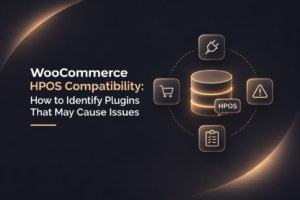
WooCommerce High-Performance Order Storage (HPOS) changes how a store saves and retrieves order data by moving it from traditional WordPress post tables to dedicated database tables.
The performance benefits can be significant. In WooCommerce’s official HPOS benchmarks, order creation was approximately 5× faster, while a simple checkout was up to 1.5× faster in controlled tests. Actual results vary by store and configuration.
However, plugins that rely on older order-storage methods may not work correctly after HPOS is enabled. This can affect payment processing, refunds, and order updates.
Checking WooCommerce HPOS compatibility before switching helps identify potential risks. This guide explains how to review plugin compatibility, test critical workflows, and resolve conflicts before enabling HPOS on a live store.
Why Does HPOS Compatibility Matter?
Not every WooCommerce extension uses supported WooCommerce APIs to access order data. Some plugins query WordPress database tables directly or assume that orders are always stored as posts.
When HPOS is enabled, these assumptions can cause unexpected issues. For example, an order export plugin that retrieves data directly from wp_posts may fail to fetch orders stored in dedicated HPOS tables if it does not support the new storage system.
This can affect critical store operations, including:
- Order creation and updates
- Checkout and payment processing
- Invoice and packing slip generation
- Order exports and reporting
- Subscription renewals
- CRM, ERP, and accounting integrations
- Custom order-management workflows
Identifying potential compatibility risks early helps prevent disruptions after migrating to HPOS.
1. Understand How HPOS Affects WooCommerce Plugins
Traditionally, WooCommerce stored order data in WordPress’s wp_posts and wp_postmeta tables, alongside pages and other content. WooCommerce HPOS introduces dedicated order-data tables, including wp_wc_orders, wp_wc_order_addresses, wp_wc_order_operational_data, and wp_wc_orders_meta.
Table names and prefixes may vary by installation and WooCommerce version. By separating order data from general WordPress posts and metadata tables, HPOS can reduce query overhead and improve order-data management. .
This change affects how plugins access order information. Extensions that use WooCommerce’s supported order APIs can generally work with either storage system.
However, plugins that directly read or update order data through older WordPress functions or database queries may need code changes.
Pay particular attention to extensions that handle critical order workflows:
- Payment gateways: Process payments and refunds.
- Subscription tools: Manage recurring payments and renewals.
- Invoicing plugins: Retrieve order details and generate invoices.
- Shipping integrations: Create shipping labels and update tracking information.
- Custom order-management plugins: Modify order statuses or synchronize data with external systems.
These extensions are not automatically incompatible. Reviewing WooCommerce plugin compatibility and identifying HPOS-compatible plugins helps flag potential risks before switching.
2. Check WooCommerce’s Built-In HPOS Compatibility Warnings
WooCommerce provides compatibility information to help identify extensions that may not support HPOS. To perform a WooCommerce HPOS compatibility check:
- Open your WordPress dashboard and go to WooCommerce > Settings > Advanced > Features.
- Locate the order data storage settings and review the HPOS options.
- Check the compatibility warnings and review any WooCommerce incompatible plugins listed.
A plugin marked as incompatible needs further investigation before HPOS is enabled. However, a plugin missing from the compatibility information is not necessarily compatible; its developer may not have declared support.
Review each plugin’s status and available updates before proceeding. This helps you check HPOS compatibility, but testing is still needed to confirm that critical functions work correctly.
3. Review Plugin Documentation and Update History
WooCommerce’s built-in warnings are a useful starting point, but the developer’s website, documentation, changelog, and support forum can provide more details. Look for confirmation that the plugin supports HPOS.
Check the following:
- Current version: Confirm that the installed plugin supports HPOS and your current WooCommerce version.
- Recent updates: Review WooCommerce plugin updates for HPOS-related fixes or changes to order handling.
- Reported issues: Look for unresolved reports involving order processing, refunds, subscription renewals, or other essential workflows.
Also, pay close attention to high-risk plugin categories, including payment gateways, subscription and membership tools, invoicing and order export plugins, and ERP, CRM, and accounting integrations. Custom plugins and theme functions may also rely on outdated database queries.
Test these components in a staging environment to identify potential compatibility issues before they affect your live store.
If WooCommerce HPOS support is unclear, contact the developer and ask whether the current release supports HPOS and whether known limitations affect your setup.
These checks help assess WooCommerce plugin compatibility issues and identify potentially HPOS-compatible plugins. Documentation alone cannot guarantee that every feature works correctly, so test critical workflows in staging before enabling HPOS on your live store.
4. Identify Plugins That May Use Outdated Order-Storage Methods
Some WooCommerce HPOS issues occur when plugins access order data through older WordPress functions instead of WooCommerce’s supported order APIs. Custom plugins and older extensions deserve particular attention if they bypass these APIs to retrieve or update order information.
Developers can review plugin code for the following warning signs:
- Post and postmeta functions: Check get_post_meta() and update_post_meta() when used to access or modify order data.
- Direct database queries: Look for queries that read or update order information in legacy WordPress tables.
- Outdated order handling: Identify code that assumes order data is always stored in WordPress post tables.
Before enabling HPOS on your live store, confirm that order data is fully synchronized and that all critical workflows have passed testing. Keep a verified backup and a rollback plan ready so you can respond quickly if compatibility issues arise after the switch.
These patterns indicate a need for investigation, not automatic proof of incompatibility. Test the affected functionality in staging and investigate errors before changing the live store. This helps verify WooCommerce custom plugin compatibility and identify code that may need updating.
5. Test Plugin Compatibility on a Staging Site
A staging site lets you test HPOS without risking live orders. Create a WooCommerce staging environment that mirrors your store, including active plugins, custom code, theme settings, and representative order data.
Before enabling HPOS in staging, review compatibility warnings and confirm that order data synchronization has completed successfully. Then test the workflows your store relies on:
- Checkout and payments: Place test orders using test payment configurations.
- Refunds and order statuses: Process test refunds and change order statuses.
- Subscriptions: Test renewal workflows if recurring payments are used.
- Shipping and integrations: Verify labels, tracking updates, and data shared with connected systems.
Check the WooCommerce dashboard and connected systems to confirm that order details, statuses, and metadata appear correctly.
Document errors and affected plugins before changing the live store. Thorough WooCommerce HPOS testing helps identify conflicts before proceeding with WooCommerce HPOS migration.
6. Find the Plugin Causing the Compatibility Issue
If a workflow fails in staging, investigate the cause before changing the live store. Effective WooCommerce HPOS troubleshooting starts with identifying when the problem occurs.
- Review error logs: Check WooCommerce notices, PHP WooCommerce error logs, and relevant debugging information for database errors or failed order updates.
- Reproduce the issue: Repeat the affected action, such as processing a refund or changing an order status.
- Isolate suspected plugins: Deactivate one suspected plugin at a time in staging, then repeat the workflow.
- Retest after each change: Record whether the issue persists before testing another plugin.
If the problem continues, investigate WooCommerce plugin conflicts involving multiple extensions, theme functions, or custom code. This systematic approach helps troubleshoot HPOS compatibility without unnecessary changes to the live store.
7. Resolve the Issue Before Enabling HPOS on Your Live Store
Once you identify the cause, fix the issue and retest the affected workflows in staging. Website reliability also matters for e-commerce conversions. 17% of US online shoppers reported abandoning an order because a website had errors or crashed. In other words, testing checkout, payment processing, and order updates before switching storage systems is important.
- Update or replace the plugin: Install a compatible release or contact the developer if an update is unavailable.
- Fix custom code: Have a WooCommerce developer update outdated methods to use WooCommerce’s supported order APIs.
- Verify compatibility mode: Keep WooCommerce HPOS compatibility mode enabled when appropriate during troubleshooting. Confirm that WooCommerce order data synchronization has completed before changing storage settings.
- Retest critical workflows: Verify checkout, payments, refunds, subscriptions, order status changes, and shipping integrations relevant to your store.
Before enabling HPOS on your live store, verify data synchronization, test critical workflows, and keep a verified backup and rollback plan ready.
Before you enable WooCommerce HPOS on the live store, take a verified backup of your database and files and prepare a rollback plan. These steps help fix WooCommerce HPOS compatibility issues while reducing the risk of order-processing disruptions.
Understand HPOS Compatibility Mode
WooCommerce compatibility mode can synchronize order data between HPOS tables and legacy WordPress posts tables, depending on the store’s configuration. However, it does not fix incompatible plugin code or unsupported database queries.
Before completing the migration, confirm synchronization is complete, check for data discrepancies, and test critical extensions.
8. Create an HPOS Compatibility Checklist
Before enabling HPOS on a live WooCommerce store, confirm that the following checks are complete:
- Back up the website and database.
- Verify the WooCommerce version, HPOS settings, and compatibility status of critical plugins.
- Review plugin documentation, changelogs, custom code, and legacy order queries.
- Test checkout, payments, refunds, order statuses, invoices, exports, and reports.
- Verify subscriptions, recurring payments, and ERP, CRM, shipping, or accounting integrations where applicable.
- Review relevant logs and confirm order data synchronization is complete.
- Document rollback steps and obtain approval before migrating to production.
Completing this checklist helps reduce compatibility risks and prepare the store for a safer HPOS transition.
Get Your Store Ready for WooCommerce HPOS
Moving to HPOS can improve order-data management, but a smooth transition depends on WooCommerce HPOS compatibility, accurate data synchronization, and thorough testing. Identifying potential conflicts early helps protect checkout, payment processing, and other essential store operations.
If your store relies on older extensions or custom integrations, resolving compatibility issues may require specialized support. At CoSpark, we help businesses address these challenges through expert WooCommerce plugin troubleshooting, tailored fixes, and reliable WooCommerce development services.
Planning to migrate to HPOS? Contact our team to discuss your store’s requirements and prepare for a smoother transition.
Frequently Asked Questions
1. How can I check WooCommerce HPOS compatibility for a plugin?
Go to WooCommerce > Settings > Advanced > Features and review the HPOS compatibility information. Check the plugin’s documentation, changelog, and developer support to confirm compatibility with your WooCommerce version. Test critical functionality in staging before enabling HPOS on your live store.
2. What happens if a plugin is incompatible with WooCommerce HPOS?
Incompatible plugins may fail to retrieve or update order data correctly, affecting payments, refunds, order statuses, or other workflows. Review WooCommerce plugin compatibility issues, update the extension, or contact its developer for a fix before switching storage systems.
3. Can I enable HPOS if a plugin has not declared compatibility?
An undeclared compatibility status does not automatically mean a plugin is incompatible, but it does not confirm support either. Contact the developer and test the plugin’s functionality in staging. A thorough WooCommerce HPOS compatibility check can help identify potential risks before migration.
4. Does WooCommerce HPOS compatibility mode fix incompatible plugins?
No. Compatibility mode synchronizes order data between HPOS tables and the legacy WordPress post tables, but it does not automatically fix outdated plugin code. If an extension relies on unsupported order-storage methods, WooCommerce plugin troubleshooting and code updates may still be necessary.
5. How can I troubleshoot WooCommerce HPOS compatibility issues?
Start by reproducing the issue on a staging site and reviewing WooCommerce and PHP error logs. Test suspected plugins individually and inspect custom code for outdated order-handling methods. If the issue requires code changes or complex conflict resolution, WooCommerce development services can help identify the cause and implement a reliable fix before migration.