Skip to content
Key Takeaways
- The problem is almost never how many plugins you have. It’s that one or two are badly built, and a single poorly coded plugin can outweigh fifty lean ones. The job is to find the specific culprit, not to thin the herd.
- Query Monitor is the free, actively maintained tool for this. Its Queries by Component view groups database queries by the plugin responsible and sorts them by time, so the offender stands out.
- Skip the old P3 Plugin Performance Profiler. It’s been abandoned for years and removed from the WordPress repository, and it can crash a live site the moment you activate it.
- A plugin can drag your store without touching the database, by loading scripts on every page, firing expensive hooks, or making blocking calls to a slow external API. Query Monitor surfaces all of these.
- Finding the culprit is safe. Fixing it usually isn’t, because you can’t just delete a plugin your store relies on. Always diagnose on staging, back up first, and treat the fix as real work.
Stop counting your plugins
Your WooCommerce store is slow, so you open the average “speed up WooCommerce” article, and the advice is the same: you’ve got too many plugins, start deactivating them. It’s tidy, it’s intuitive, and it’s mostly wrong.
Plugin count is a weak predictor of speed. A store running forty well-built plugins can be faster than one running eight, because what matters is code quality, not headcount.
One badly written plugin that loads its scripts on every page and runs a slow query on every request will hurt you more than a dozen lean ones sitting quietly.
So the real question isn’t how many plugins you have.
It’s which one is the problem, and slow plugins are only one of several things that drag a store down, as we cover in why a WooCommerce store slows down.
Answer the “which one” question and you can fix the actual cause instead of guessing.

Why Plugins Slow Down WooCommerce
Not every plugin affects performance in the same way. Some are lean, well-built, and barely noticeable. Others add work to every page request, whether that work is needed or not.
The most common causes are excessive database queries, slow external API requests, heavy JavaScript and CSS files, expensive WordPress hooks, and functionality that loads across the entire site instead of only where it’s needed.
In some cases, a plugin may even run duplicate or inefficient queries that add load without adding value.
That’s why plugin count is such a poor measure of performance. As a store grows, monitoring how individual plugins behave becomes far more important than simply keeping the total number low.
First, the tool to stop using
Before the tool you should use, here’s one to avoid. For years, the standard recommendation for this job was the P3 Plugin Performance Profiler, and you’ll still see it suggested in older articles. Don’t install it.
P3 has been abandoned for years, it has been removed from the WordPress plugin repository, and its last version only claims support up to WordPress 5.5.
Worse, plenty of users report it crashing the admin the moment they activate it. On a live WooCommerce store, that’s a self-inflicted outage, so if the advice you’re reading points to P3, that advice is out of date.
The right tool: Query Monitor
The tool that actually does this well is Query Monitor, and it’s free. It’s actively maintained, it works on WordPress and WooCommerce, and it needs no setup: install it, activate it, and a new menu appears in your admin toolbar.
Query Monitor is not a frontend speed test like PageSpeed Insights. It is a developer tools panel that shows what’s actually happening on the server for a given page: the database queries, the scripts and styles, the hooks, and the external API calls. That server-side view is exactly where a slow plugin hides.
One housekeeping note. To attribute queries to the right plugin, Query Monitor drops a small db.php file into wp-content, and if a caching plugin such as W3 Total Cache already occupies that file, the component view won’t work until that’s resolved.
The rest of the tool still functions, and for keeping an eye on performance over time rather than one-off debugging, see our guide to monitoring your store’s health.
Find the culprit: Queries by Component
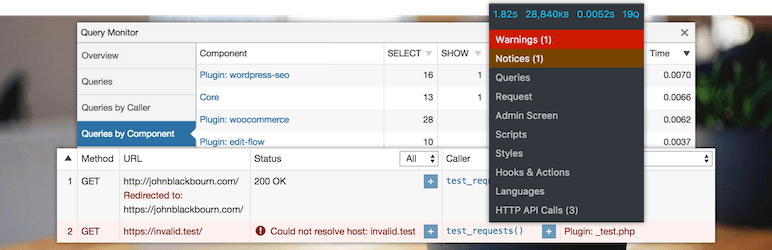
Here’s the single most useful view for this job. In the Query Monitor menu, open Queries, then Queries by Component.
It lists every plugin, your theme, and WordPress core, with the number of database queries each one ran on this page and the total time they took, sorted worst first.
The pattern jumps out fast. If core is responsible for 30 queries and some social-feed plugin is responsible for 150, you have found your prime suspect.
Query Monitor also flags genuinely slow queries in red, so a single expensive query is as easy to spot as a pile of small ones.
There is a catch worth knowing, because it trips people up. Query Monitor sometimes blames the wrong plugin, thanks to the way WordPress hooks work.
If a coupon plugin runs its code inside a WooCommerce filter, those queries get attributed to WooCommerce rather than to the coupon plugin.
So before you accuse the obvious name, expand the slow query and read the actual file path in its call stack. That tells you which plugin really owns it.
It’s a small step that separates a correct diagnosis from blaming WooCommerce for someone else’s code.
How do I find out which plugin is slowing my site?
Install Query Monitor, load a slow page, and open Queries by Component. It shows how many database queries each plugin ran and how long they took, sorted by time.
The plugin at the top, especially with queries flagged red, is your starting point, which you confirm by reading the call stack.
It’s not always the database
Plenty of slow plugins barely touch the database. They drag your store in other ways, and Query Monitor surfaces each one.
The most common is assets. A plugin that loads its CSS and JavaScript on every page, even pages where it does nothing, adds weight across the whole site.
Query Monitor’s Scripts and Styles panels show which plugin enqueued what, so you can catch a contact-form script loading on every product page.
External API calls deserve special attention because they’re easy to overlook. Many WooCommerce plugins connect to payment gateways, shipping providers, CRM systems, email marketing platforms, and inventory tools.
When one of those services responds slowly, it can delay the entire page request.
Query Monitor’s HTTP API Requests panel makes these issues easy to spot. Look for requests that take several seconds to complete, repeated calls to the same service, or requests that regularly time out.
A slow third-party service can create noticeable delays even when the database itself is performing well.
It’s also worth checking the Hooks & Actions panel. Some plugins attach expensive processes to commonly used WordPress and WooCommerce hooks, causing additional work on every request.
Query Monitor shows exactly what’s running and where it comes from, making it much easier to identify the source of the slowdown.
Finally, don’t ignore PHP errors. Hidden warnings, notices, and deprecated functions can accumulate behind the scenes and affect performance over time.
Query Monitor’s PHP Errors panel helps surface these issues so they can be addressed before they turn into larger compatibility or stability problems.
A familiar WooCommerce example lives here too, in runaway admin-ajax and cart-fragment requests firing on pages that don’t need them.
That’s really a caching problem rather than a plugin one, but Query Monitor’s Ajax view is where you’d first notice it.
Why would a plugin slow my site if it’s barely running queries?
Because database queries are only one cost. A plugin can load scripts and styles on every page, attach heavy work to hooks that run on each request, or make blocking calls to slow external APIs.
Query Monitor’s Scripts, Styles, Hooks, and HTTP panels reveal each of these.
Confirm it on staging with deactivate-and-test
Query Monitor points the finger. To be certain, you confirm by removing the suspect and measuring the difference: deactivate the plugin, reload the page, and check whether the total query time and page generation time drop.
Do this on a staging site, never production.
Deactivating a plugin on a live store can break checkout, break the layout, or interrupt a feature a customer is using right now, and you won’t always see the damage from the admin. A staging copy lets you test freely and measure honestly.
If several plugins are interacting, deactivate them one at a time and re-measure after each, or switch them all off and reactivate one by one until the slowdown reappears.
That isolates a single culprit or a bad combination. It’s slower than guessing, but it’s the difference between a real diagnosis and a hunch.
Should I just deactivate my plugins one by one? As a diagnostic on a staging site, yes, that’s exactly the method.
Deactivate, reload, and watch whether query time and page generation time improve. Just never do it on a live store, because deactivating the wrong plugin can break the storefront or checkout for real customers.
Common Plugin Performance Issues
Certain categories of plugins appear more often than others when performance problems are being investigated.
Page builders are a common example. Some load large amounts of CSS, JavaScript, and functionality across the entire site, even on pages where those assets are never used.
Marketing plugins can have a similar effect.
Popup builders, analytics tools, tracking scripts, and marketing automation platforms often introduce additional requests and database activity that accumulate over time.
Search plugins can also become problematic as product catalogs grow. Advanced filtering and search functionality frequently rely on complex database queries, which can become expensive if they’re not properly optimized or cached.
Wishlist and comparison plugins are another frequent source of overhead because they often generate user-specific queries and dynamic content.
Likewise, inventory synchronization tools that connect WooCommerce to ERP systems or external marketplaces may introduce slow API requests if synchronization occurs during page loads.
None of these plugin types are inherently bad. The key is understanding what they’re doing behind the scenes and ensuring they’re configured in the most efficient way possible.
The hard part: fixing it without breaking your store
Finding the culprit is the easy half. Fixing it is where stores get into trouble, because the slow plugin is usually doing something you actually need.
You can’t just delete your reviews plugin or your shipping calculator and call it solved.
There are four ways out, in rough order of effort.
First, configure it, since many plugins have settings that limit what they load or where, and scoping a plugin’s assets to the pages that use them is often the quickest win. Second, replace it with a lighter, better-built alternative that does the same job.
Third, optimize around it, by dequeuing its assets where they aren’t needed or adding an object cache so repeated queries stop hitting the database.
Fourth, when nothing else works and the function is essential, rebuild what the plugin does as lean custom code. The broader set of tools that supports all of this lives in our speed and performance toolkit.
The first two paths are often doable in-house. The last two are developer work, and so is judging which path a given plugin actually needs. Get it wrong and you trade a slow store for a broken one.
Can I just delete the plugin that’s slowing my store?
Only if you don’t need what it does. Most slow plugins provide a feature customers rely on, so the realistic fix is to reconfigure it, replace it with a lighter alternative, optimize around it, or rebuild its function as custom code.
Deleting an essential plugin solves the speed problem by removing the feature, which usually isn’t an acceptable trade.
Frequently Asked Questions
What is the best tool to find a slow WordPress plugin?
Query Monitor, a free and actively maintained plugin. Its Queries by Component view groups database queries by the plugin responsible and sorts them by time, so the offender is easy to spot.
Avoid the old P3 Plugin Performance Profiler, which has been abandoned, removed from the WordPress repository, and can crash a live site.
Is Query Monitor safe to run on a live WooCommerce site?
It is safe to read on a live site, but it adds overhead and exposes debugging data, so it’s best kept to staging or limited to administrators.
For one-off diagnosis on production, install it, find the culprit, and remove it afterward. For anything ongoing, a staging environment is cleaner.
Can I find a slow plugin without being a developer?
Yes, up to a point. Query Monitor’s Queries by Component view is readable by anyone: the plugin with the most queries, or the slowest ones, is your suspect.
Reading the call stack to confirm it, and then fixing the cause, is usually where developer help begins.
Why is my WooCommerce admin slow but the front end is fine?
Page caching protects the front end, but the admin runs live with no cache, so a plugin firing heavy queries or hooks on every admin request hits you directly there.
It is a common sign of a poorly behaved plugin, and Query Monitor will show you which one.
What does “Queries by Component” mean in Query Monitor?
It is the view that groups all the database queries on a page by what triggered them: each plugin, your theme, and WordPress core.
It sorts them by total time, which makes it the fastest way to see which plugin is doing the most database work on a given page.
Will deactivating plugins speed up my store permanently?
Only as a diagnosis. Deactivating tells you which plugin is responsible, but the lasting fix is to reconfigure it, replace it, optimize around it, or rebuild its function.
If you simply leave an essential plugin switched off, you’ve removed a feature rather than solved the problem.

The Bottom Line
The fastest way to slow this whole process down is to start deactivating plugins at random. Plugin count is not your problem.
One or two badly built plugins are, and the win comes from finding exactly which ones.
Query Monitor finds them.
Open Queries by Component to see which plugin runs the most or slowest queries, check the Scripts, Styles, Hooks, and HTTP panels for the ones that drag your store without touching the database, and confirm with a deactivate-and-test on staging.
Skip P3 entirely, because it’s dead and it’s dangerous.
Then comes the real work. The fix is rarely deletion, because the slow plugin usually does something you need, so you reconfigure, replace, optimize, or rebuild.
The early steps are often in-house and the rest is developer territory, and on a live store the cost of a wrong move is an outage.
If you’d rather have the culprit found and fixed safely, without your store going dark while it happens, our WooCommerce developers do exactly this.